
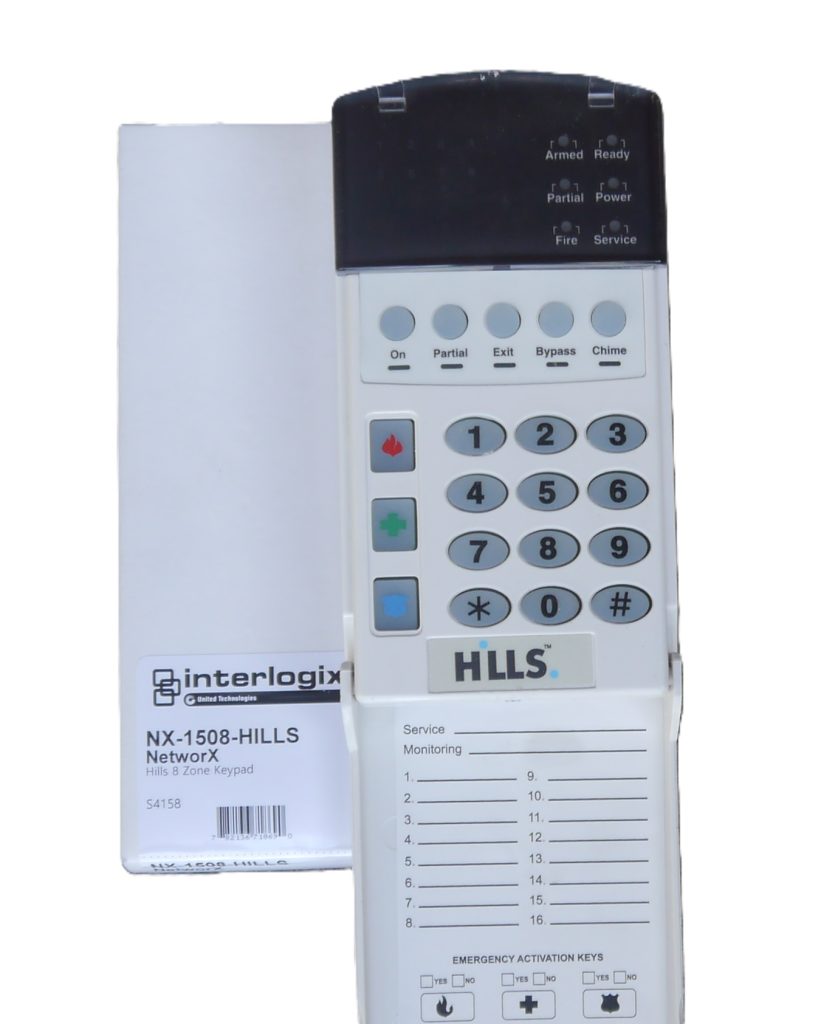
Hills alarm system user manual including how to service Hills alarm beeping keypad
Hills alarm system LED keypads for sale
Hills alarm system 8 zone keypads repair service
UNDERSTANDING THE LIGHTS ON THE HILLS SERIES LED ALARM SYSTEM KEYPAD
Armed Light
The armed light is “on” when the system is armed. The armed light is “off” when it is disarmed.
The armed light will flash when the alarm system has been triggered by a zone area
Bypass Light
The bypass light is “on” when any zone in this code pad’s area is bypassed. The zone(s) that is
bypassed will also be illuminated. If the bypass light is “off”, no zones are bypassed.
Chime Light
The chime light is “on” when the chime feature is “on”; “off” otherwise.
Exit Light
The exit light is “on” during the exit delay. Please note that the light will flash during the last 10
seconds of the exit delay as a warning that the time is running out. (The user may want to
restart the exit delay if the exit light is flashing in order to prevent an alarm. The user may then
press the [Exit] key to restart the exit delay before the delay expires.)
Fire Light
A steady fire light means a fire zone has been faulted. A rapidly flashing fire light means that a fire zone is activated
On Light
The on light is “on” when the system is armed. The on light is “off” when it is disarmed.
Partial Light
The partial light is “lit” when the system is armed in the Partial Mode. All non bypassed zones will be delayed and follow the Partial delay time. When armed in Partial Mode, the Arm, On, and Bypass lights will also be “lit”.
Power Light
The power light is lit if the primary power is on. The power light will flash if the system detects a low battery condition.
Ready Light
The ready light is “lit” when the system is ready to arm and “flashes” if ready to force arm. The ready light is off when the system is not ready to arm because of a zone(s) being faulted.
Zone Light
The zone lights are “off” when everything is normal. A zone light will be “lit” if the zone has been bypassed. If a zone light is “flashing”, that zone is in alarm or has been faulted. If a zone light is “flashing” rapidly, it means that the zone has been activated. Trouble conditions are: Hardwire Zone Tamper; Wireless Zone Tamper, Sensor Low Battery and Sensor
Loss of Supervision
(A combination of Alarm/Fault and Tamper/Trouble will produce a rapid “flashing” light for a short period of time, followed by a slow “flashing” light.)
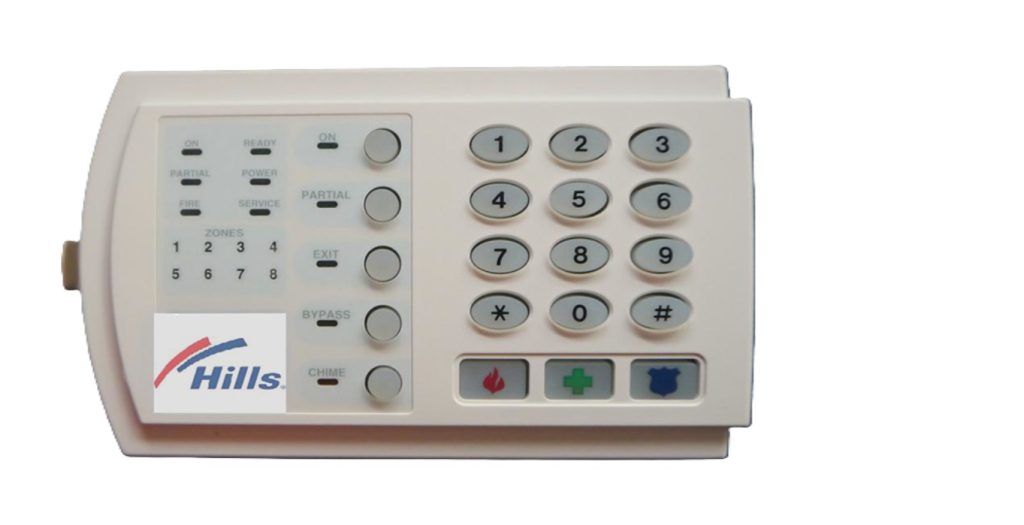
WHAT DO THE KEYPAD CONTROL TONES INDICATES FOR DIFFERENT TYPES OF CONDITIONS
Beeps for all key presses Sounds a continuous tone during the entry delay time.
Pulses when a day zone is violated while the system is disarmed.
Pulses when a fire zone has a trouble condition.
Beeps 3 times for trying to arm with the “Ready” light off, if “Force Arming” has not been
selected.
Beeps for 1 second or emits a “ding-dong” sound for the “Chime” feature.
Beeps during an exit delay; beeps rapidly for the last 10 seconds of an exit delay; and
beeps 1 second at the end of the exit delay.
Pulses when the armed status changes and the AC power is off.
Entering a valid code will silence the code pad sounder when it is pulsing. Please
contact your installer if a trouble condition exists.
Pulses when the armed status changes and any zone(s) is bypassed.
Pulses when the armed status changes and a low battery is detected.
Pulses when the armed status changes and a tamper condition is detected. Beeps to
indicate telephone line cut, if selected.
Pulses when one or more of the following conditions are detected: zone or box tamper,
low battery, AC power fail, or expander trouble.
HOW TO ARM THE HILLS ALARM SYSTEM FROM THE KEYPAD
By pressing down the “ON” key when the user is away from the premises or simply turning on your alarm system by entering the 4-digit user code example: “1234”. The “armed”, “on” and “exit” lights will illuminate. You may now exit the premises to protect your property.
HOW TO DISARM THE HILLS SECURITY ALARM SYSTEM FROM THE KEYPAD
Enter your user code to disarm the system Example: “1234”
When turning your alarm system “ON” make sure you close all zoned windows and doors. The green LED ready light will illuminate when all protected zones and detectors are secure. NOTE: If any zones are bypassed, a sensor in that zone can be tripped without affecting the ready light. The security system may not arm if the ready light is not on depending on how the installer programmed the control panel. If the power light is off; you have no AC power. Restore power if this is the case. If not, contact your security company for assistance.
Note: The exit light will flash rapidly for the last 10 seconds in exit delay as a warning that the time is about to expire.
HOW TO FULLY ARM THE HILLS SYSTEM BY QUICK ARM MODE
This function allows users to (ARM) in the Quick Arm Mode just by pressing either the “ON” or “PARTIAL” key press button to arm the system.
Make sure all the alarm doors & windows are shut. Ready light will be illuminated green, and the zones are now secure.
The armed and exit lights will illuminate. You may now exit the premises
Note: The exit light will flash fast for the last 10 seconds of the exit delay as a warning in which the exit time is about to expire.
Enter your user code to disarm the system Example: “1234”
HOW TO PARTIAL ARM YOUR HILLS ALARM SYSTEM – HOME MODE – STAY MODE FUNCTION
Press the Partial key to partially arm your premises
Enter your user code to disarm the system Example: “1234”
Partial Arming excludes some rooms from security arming. For example, you may wish to exclude bedrooms at night when they are in use. Partial mode is also used for protecting exterior doors and windows (the home perimeter) when the user is inside.
Partial Arming is also used when the user is inside the premise and wants protection around the perimeter.
How to properly check the Hills Partial Arm mode:
Close all protected doors and windows. Ready light will light when all protected zones and sensors are secure. NOTE: If any zones are bypassed, a sensor in that zone can be tripped without affecting the ready light. The security system will not arm if the ready light is not on. If the power light is off, you have no AC power. Check that the power is switched on at the power point and electrical power box and safety switches are in the right position. If not, contact your security company.
Press the [PARTIAL] key. The bypass light will illuminate if any zone(s) is bypassed. The light(s) corresponding to the bypassed zone(s) will illuminate, alerting the user that a zone(s) may be unprotected and can be faulted when arming.
HOW TO ARM YOUR HILLS ALARM FROM THE ON OR STAY MODE
When you enter the protected area through one of the designated Entry/Exit doors, the code pad control will sound a solid continuous tone for the duration of the entry delay time, or until you enter a valid code. After entering a valid code, the red armed light will go off and the tone will stop. The security system is now DISARMED. If a valid code is not entered before the end of the entry delay, an alarm will occur. NOTE: If the red armed light is flashing during
the entry delay, the alarm system has been activated and now check your view memory function for more information
HOW TO BYPASS INDIVIDUAL ZONES
Bypassing is used to temporarily exclude one or more zones that would normally be protected. For instance, a pet may need to be left in a part of the house that is usually protected. If you wish to bypass one or more zones, this must be done while the system is in the disarmed state. The following steps are used for bypassing zones. Once you have
Bypassed the zone(s) you may Arm the system via the ON or PARTIAL Mode. When your security system is disarmed, any zones that has been temporarily isolated or bypassed will be reset and will therefore be protected when the system is armed again. To manually un bypass zones, perform the bypassing procedure on a zone that is already bypassed.
The corresponding light for that zone will go off when un-bypassed.
This example shows a user bypassing zones 2 and 3.
Press the [BYPASS] key.
(The bypass light flashes.)
Enter a 2-digit zone indicating the zone you wish to bypass.
(Example: Press the [0] and the [2]
key for zone 2, press [0] and the [3]
for zone 3.) The corresponding light for that zone will be lit when bypassed
Press the [BYPASS] key again
Lastly, don’t forget to turn on the alarm system to activate this function
HOW TO CHANGE & ADD ADDITIONAL HILLS ARMING DISARMING ALARM USER CODES
Master and User Codes are 4 digits long; this is used for arming and disarming. A master Code has permission to Change and Add User Codes. The default master code is user code one [01] with a code of [1234].
Key Sequence Operation
Press [*] followed by [5].
Enter the existing master code.
Enter the two-digit number – Example: 01 = Master code, 02 = 1st user code, 03 = 2nd user code, 04 = 3rd user code
Enter the new four-digit user code you would like to add or change..
Repeat steps 3 and 4 for all additional user codes.
Press [#] when finished to exit this feature.
note: In regards to changing your Hills alarm code. If you have moved into a new property and you weren’t given the master code, then a security technician is required for recommissioning to acquire a new working code. Now requires a reprogram, alarm reset including factory default to clear any additional codes which may be stored inside the main circuit board. This reference manual and every other user manual in changing alarm codes is only useful if users have the existing master coder which is stored in user location (01)
HOW TO DELETE HILLS ALARM USER CODE
You may be required to delete a user code, for example, when a third-party member of the household vacates home, or selling the property
Key Sequence Operation
Press [*] and [5].
Enter an existing master code.
Enter the user code to be deleted (e.g. user code three 3)
Press the [Chime] key four (4) times to delete the user code.
Repeat steps 3 and 4 for additional user codes.
Press [#] when completed.
HOW TO CHANGE THE HILLS ALARM SYSTEM PHONE NUMBERS
You may have a need where, in the event of alarm activation, you want to replace the control panel
phone number it dials out to. EXAMPLE. Your mobile phone has changed.
There are three (3) numbers that can be viewed, entered/changed or deleted. Only numbers
set to ‘pager’ or ‘siren tone’ telephone formats can be modified by you that was programmed in by the installation company.
The 3 (three) locations are:
Phone number 1 is [][4][1] Phone number 2 is [][4][2] Phone number 3 is [*][4][3]
To program a new phone number, you must do the following
Example shows programming phone number 3.
Press [*] and [4] [3] for phone number 3.
Enter the master code. Example 1234
Enter your phone number. (Use the table below to determine the key values).
Press [#] to end and exit this feature.
Example: * 43 1234 0408359072 #
Key Phone Digit Key Phone Digit
[1] 1 [On] Star (*)
[2] 2 [Partial] Hash (#)
[3] 3 [Exit] 4 Sec delay
[4] 4 [Bypass] Disable
[5] 5 [Chime] Pulse Dialling
[6] 6
[7] 7
[8] 8
[9] 9
[0] 0
Phone dialler connectivity status: redundant
IP Module connectivity status: obsolete
note: in many cases the National Broadband Network (NBN) and your inbuilt phone dialler system will stop communicating with Hills alarms. A fault error, service light or beeping tone sounds when your alarm system attempts to connect to a monitoring back to base station or mobile phone number without success. It is more than likely that the connection was unsuccessful If you have installed NBN at your premises, you may need to contact your network service provider to confirm if this is still compatible to your Hills alarm system dialler. The other option was for notifications to the phone is by IP module to connect to NBN modem Wi-Fi and this is now obsolete
HOW TO WALK TEST YOUR HILLS ALARM DEVICES TO MAKE SURE EVERYTHING IS WORKING PROPERLY
Walk test is used to test the functionality of the zone sensors and should be performed regularly. When in walk
test mode the code pad chime sounds each time a zone is activated by a person moving in front of the sensor and will
then light the zone number from keypad controller. Every zone can be tested for the duration of the walk test period. When walk testing is completed, press the # key to exit this feature.
Note: the alarm system will not report to the control room during the walk test.
Key Sequence Operation
Enter [*] [CHIME].
Enter a master code. The system is now in walk test mode.
Walk past each motion sensor and return to the code pad to check each zone light to validate the sensors are
working correctly.
Enter a master code to exit walk test. If no master code is entered, walk test mode will automatically exit in 15 minuets.
HOW TO SET THE DOOR CHIME
Chime Mode provides only an audio warning at the premises. A ding-dong is sounded from
the code pad when the protected area is entered, for example, when an infant opens the door.
The door chime is turned on or off by pressing the [CHIME] key while the system is in the
disarmed state. If the chime is on, the chime light will be lit. If the chime is off, the chime light
will be off. Each press of the [CHIME] key will toggle the chime feature on/off. Chime mode
must be programmed by your security Installation Company. Tell the installer if Chime mode is required for any areas.
Key Sequence Operation
Press the [CHIME] key to turn on or turn off the chime feature.
HOW TO USE EXIT MODE TO INCREASE LONGER EXIT TIME
Exit mode is used when the user is arming the Security System, but would like to extend
the exit time. Pressing the exit button will re-start your exit time, but you may only press
Exit button twice. The code pad will beep faster in the last ten (10) seconds as a warning.
Key Sequence Operation
Press [Exit] key to extend the exit time.
How to use the Emergency Keys on your Hills Keypad
Three (3) emergency features are available to be programmed into your code pad to provide
support in the areas of personal safety: Medical, Police (duress) and Fire alarm. You must
hold these keys for two (2) seconds to activate these functions. You should press these
keys only in an emergency situation that requires response by emergency personnel.
Check with your security installation company to find out if your system is enabled for these activation keys.
Key Sequence Operation
Press this key and hold for two (2) seconds to activate the fire alarm.
Press this key and hold for two (2) seconds to activate the medical/auxiliary alarm.
Press this key and hold for two (2) seconds to activate the police/duress (panic/hold-up) alarm.
HOW TO VIEW THE HISTORY OF THE HILLS LAST ALARM ACTIVATION STORED IN MEMORY
Whenever an alarm activation occurs on your system all zones that were in alarm during that
activation will be held in memory. The last alarm activation can be reviewed via the function
listed below. I.e. You can see which area has activated the alarm.
Key Sequence Operation
Press [ * 2 ] to enter this memory feature. To exit this feature, press the # button on the Hills keypad
The alarm memory feature will flash those zone/s that created alarms and will light steady the zones that were
bypassed during the last alarm.
HOW TO RESET LATCHED ALARMS INCLUDING SMOKE DETECTORS
The Latched Alarms function resets smoke detectors, zone troubles and zone tampers
alarms. Note: If the code pad begins beeping, the reset did not execute properly. Enter your
code to silence the code pad. Wait a few minutes and repeat the reset function to attempt
another reset. If the code pad still beeps after repeated attempts, please contact your
security company.
Key Sequence Operation
Enter your code to silence the keypad sounder and then press * 7 followed by # to reset this function
HOW TO SET THE SYSTEM DATE FUNCTION
Example shows setting date as Monday, September 5th, 2025, and master code 1234.
Operation * 96 1234 2 09 05 25 #
Key Sequence Operation
Press [*] [9] [6] keys.
Enter the master code
Enter the day of the week (1=Sunday, 7=Saturday).
Enter the month code. Must be two (2) digits. E.g. [0][9] for September.
Enter the day code. Must be two (2) digits. E.g. [0][5] for the 05th day.
Enter the last two (2) digits of the year code. E.g. [2][5] for 2025.
Press [#] to exit. Your date is now set.
HOW TO SET THE HILLS SYSTEM TIME CLOCK FUNCTION
Example shows setting time at 8.34am
9 7 1 2 3 4 0 8 3 4
Press [*] and [9][7] keys.
Enter the master code (1 2 3 4) then followed by 0 8 3 4 #
HOW TO SET THE HILLS CODE PAD TONES
Each code pad can have its sounder tone frequency and sound adjusted to your requirements as per steps below to adjust the code pad sounder.
Enter the [*] [0] to start the code pad tone adjustment. The code pad sounder will sound at the current set frequency.
Enter the one [1] key to raise the tone or the two [2] key to lower the tone.
Enter [#] to exit and save the selected code pad tone.
HOW TO TEST THE COMMUNICATION, BATTERY & SIREN TEST
This test will only be performed if the installer has programmed this option on. The test
conducts a communicator test (once), a battery test and siren test.
The communicator, battery and sirens should be tested regularly.
Contact your security installation company to find out if this test is available.
Key Sequence Operation
Enter keys [*] [4] [4] to initiate the test. Note: Sirens will sound during this test.
Enter a user code to end the test.
HOW TO PERFORM THE SERVICE LIGHT DIAGNOSIS FUNCTION
This fault-finding analysis function to your Hills DAS alarm system is very helpful because it assists you to help fault find the reason why you have a Hills alarm beeping keypad including low battery
The service light will be “lit” if the security system requires service. If the service light is “on”,(lit yellow)
press the [*] key followed by the [2] key to investigate the service condition. One or more
zone lights will illuminate indicating what service(s) is required. Call your security technician immediately for these issues so they can be resolved. Below is the information of what each light means in a service condition.
Note: Power light flashing indicates a low battery in the main control panel
Key Sequence Operation
Enter keys [*] [2] and use the information below to identify the service condition.
SYSTEM FAULT – If zone 1 is lit then press the [1] key again. The zone light(s) that is illuminated corresponds to
the system fault(s) below:
1 Over Current Fault
2 Siren Trouble
3 Box Tamper
4 Expander Power
5 Expander Low Battery
6 Expander Box Tamper
7 Expander Trouble
8 Reserved
Note: Faults 1 & 2 are global in nature and will affect all areas of a multi-area system.
Press the [#] key to return to the 1 of 8 service lights.
2 ZONE TAMPER – Press the [2] key and the zone light(s) will illuminate showing the
zone(s) that is tampered. Press the [#] key to return to the 1 of 8 service lights.
3 ZONE LOW BATTERY – Press the [3] key. The zone light(s) will illuminate showing
which zone(s) has a low battery. This only applies to wireless zones. Press the [#] key to
return to the 1 of 8 service lights.
4 ZONE LOSS OF SUPERVISION – Press the [4] key and the zone light(s) will illuminate
showing which zone(s) has loss of supervision. This only applies to wireless zones.
Press [#] key to return to the 1 of 8 service lights.
5 ZONE TROUBLE – Press the [5] key and the zone light(s) will illuminate showing which
zone(s) has a trouble condition. Press the [#] key to return to the 1 of 8 service lights.
6 TELEPHONE LINE TROUBLE/LINE CUT – There is telephone line trouble or the
telephone line has been cut. The service light will remain lit until the telephone trouble
clears and a user code is entered. Note: This fault is global in nature and will affect all
areas of a multi-area system.
7 FAILURE TO COMMUNICATE – There is a failure to communicate between your
system and the central station. Note: This fault is global in nature and will affect all areas
of a multi-area system.
8 LOSS OF SYSTEM TIME – There has been a loss of power and your system clock
needs to be reset. Instructions are on page 15. Note: This fault is global in nature and
will affect all areas of a multi-area system.
Exiting this function: To exit the service diagnostic mode – press the [#] key.
Hills Reliance Keypad:
Hills code pad
The Hills alarm system control panel is now obsolete, but we do sell brand news Hills keypads in Australia
Connection to a mobile phone for alert notifications via IP module connection cabled to the modem, not available
Connect to a 24-hour control room monitoring with a subscribed wireless GPRS or connection via Wi-Fi
Supports wireless key fobs with the optional RF receiver to connect wireless devices and in stock
Easy one button operation called quick arm to turn on your alarm system by using the “ARM” button on the keypad
Chime feature to alert staff for entry alerts in shops and offices
The Hills code pad user manual is compatible to DAS NetworX NX 4-8, NX12, NX16, R8 R12 Hills Reliance R128 security systems and Direct Alarm Supplies. We provide new Hills keypad replacements to your existing security system, selling refurbished, reconditioned, and other compatible keypads to suit a wide range of alarm control panels.
The Hills alarm system is obsolete in Australia, and we offer phone technical support to help householders for repairs, emergencies, alarm maintenance queries, alarm services to factory resets, urgent security response, upgrades, and faults which happen unexpectedly. We can shut down your security system onsite in case of an emergency Example: Your sirens go off for no reason, power outages causing sudden beeping noises to the code pad and issues relating to lightning strikes, thunderstorms directly impacted to your alarm system
Call us today if you require assistance
See also
Hills repair service in Melbourne
DAS alarm maintenance services
How to switch off your alarm system in an emergency
Edit